
Editing Twitch Clip Captions
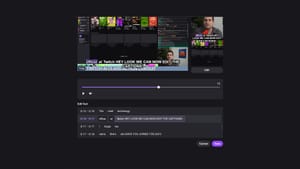
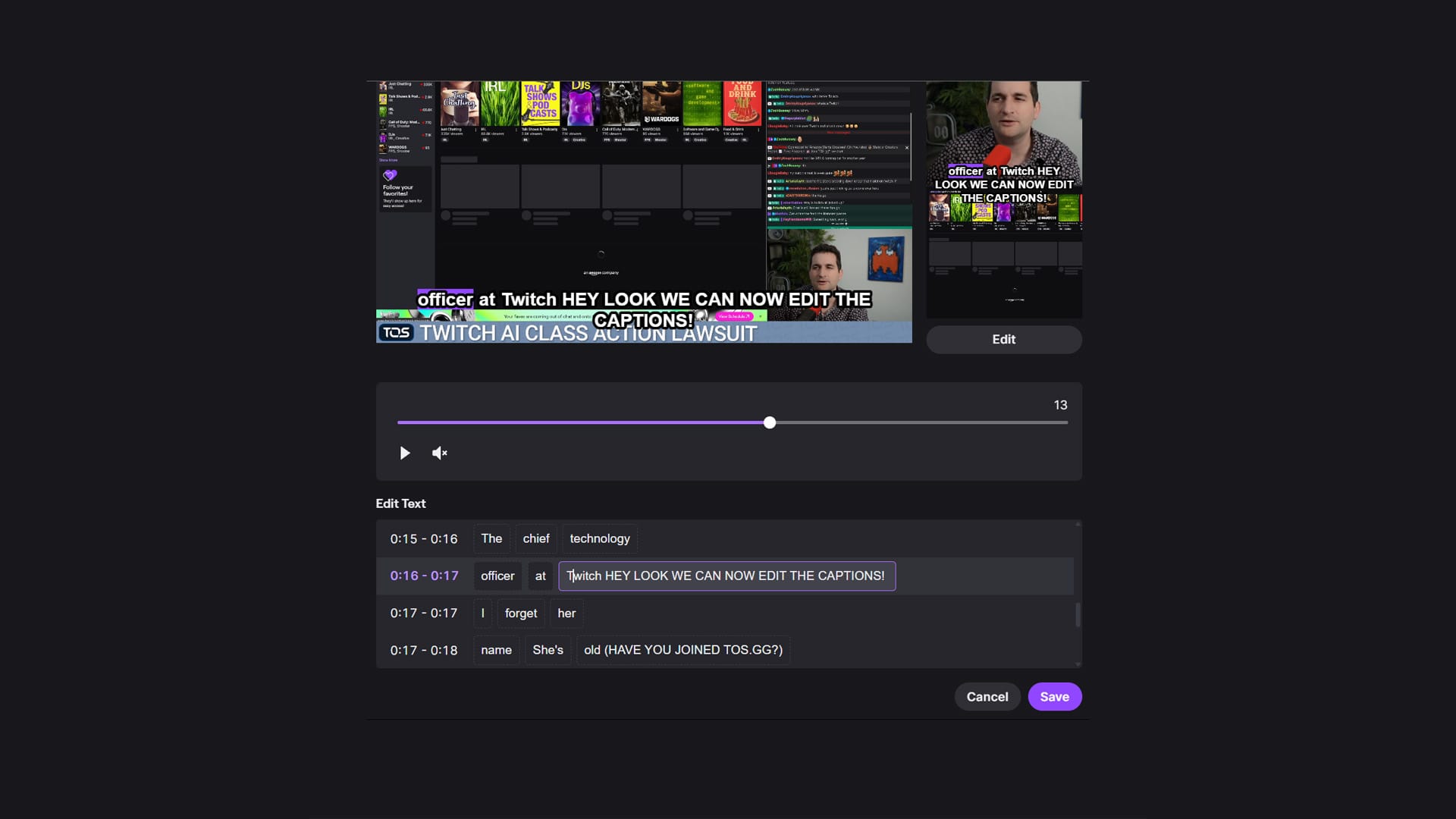
Twitch is launching the ability to edit your Captions on Clips. From your Clips Manager, find the clip you want to edit Captions on, and click the Edit icon (scissors). At the bottom, you'll see "Add Captions," or if already enabled, an "Edit" button will appear on the right. From there, you can freely edit each word (though you technically can't add new words, so it just doubles up on existing word highlights). You can replace censored words with the actual profanity used. There does not appear to be a way to adjust the timing of Captions at this point.
At this time, viewers cannot make any changes to captions; only the streamer (and Channel Editors) can edit Clip Captions.
Context:
Twitch added Clip Captions as part of their general rollout of AI features this year. This includes features like Twitch Clip That, Auto Clips, Amazon Ads Campaign Assist, Stream Summaries, and other AI-powered tools that are Always Listening to streams. The initial launch of Clip Captions has been relatively basic, with only a simple on/off toggle. Twitch is planning to make further updates to allow changes to color, font, placement, and size.
My Thoughts:
A needed change, as the captions aren't always the most accurate. The implementation of this editing tool is pretty rudimentary (unable to add independent new words or adjust timing), and it's not designed in the most user-friendly way. But functional is better than unavailable! A good change from Twitch, and I look forward to seeing more updates.
Check out the conversation about this on Twitter, Bluesky, or Threads.

Member discussion